En este post voy a crear un event receiver remoto (deployado sobre un Azure WebSite) para un Sharepoint 2013 on-premise. En una segunda parte voy a utilizar algunos servicios de Azure (Table, Services Bus, Push Notifications, etc) para ver el uso que se puede hacer con estos eventos-
Hay muchos ejemplos con Auto-hosted Apps: http://blogs.technet.com/b/sharepointdevelopersupport/archive/2013/03/13/how-to-create-a-remote-event-receiver-for-a-sharepoint-hosted-app.aspx
La idea es utilizar client object para configurar los remote event receiver, esto nos permite configurarlos sin deployar nada en los ambientes, y afectar su funcionamiento.

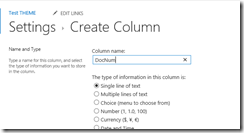
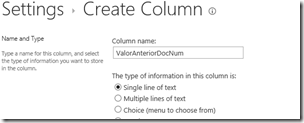
Primero creo una librería con dos campos:
ValorAnteriorDocNum = representa el valor anterior que tenia DocNum, solo lo actualizo en el eventoItemUpdating
DocNum = String (visible)

Creo una aplicación ASP.NET Empty

Elijo que se va a deployar en Windows Azure (host in the cloud)

Agrego mi subscripción

Una vez configurada la subscripción se crea el website en Azure

Agrego las referencias de “Microsoft.Sharepoint.Client.dll” y “Microsoft.Sharepoint.Client.Runtime.dll”
En general las dll´s están en : C:\Program Files\Common Files\microsoft shared\Web Server Extensions\15\ISAPI


Recuerda marca la opción “Copy Local” a true

Agrego un WCF Service llamado “EventSynchronous.svc”

En el archivo “EventSynchronous.svc.cs” edito el archivo y le agrego lo siguiente.
Agrego referencias mediante using:
- using Microsoft.SharePoint.Client;
- using Microsoft.SharePoint.Client.EventReceivers;
- using System.ServiceModel.Activation;
Después hago que la clase EventSynchronous herede de IRemoteEventService

Agrego dos métodos para satisfacer la Interface.

El método ProcessOneWayEvent se deja vacio, porque se usa para eventos Asyncrónicos. Definición de los métodos:
1. ProcessEvent(): This is a synchronous event that handles events that occur before an action occurs. Such as when a user adds or deletes a list item. Two way event that can handle current events (“-ing”) that can callback to SharePoint.
2. ProcessOneWayEvent(): This is a asynchronous event that handles events that occur after an action occurs. Such as after a user adds an item to a list or deletes an item from a list. This is one-way event that can handle past events (“-ed”).
En cambio el método “ProcessEvent”, tiene el siguiente contenido

Dependiendo del tipo de evento (ItemDeleted o ItemUpdating) hago una operación diferente, en este caso sólo hago la de ItemUpdating
Deployo la solución en el website de Azure.


Verifico si está andando el servicio WCF:http://eventreceiver5178.azurewebsites.net/EventSynchronous.svc
Ahora creo en el mismo proyecto de Visual Studio, una proyecto de consola

Agrego de nuevo las referencias del proyecto anterior

En Program.cs, hay 3 variables para completar

Después copio lo siguiente.

string sharePointUrl = "http://chrissp2013dev/sites/testtheme";
string remoteWebUrl = "http://eventreceiver5178.azurewebsites.net";
string listName = "Evento";
using (ClientContext clientContext = new ClientContext(sharePointUrl))
{
//si estas con un usuario administrador de la farm, no será necesario agregar autenticación.
//sino usa la siguiente propiedad.
//NetworkCredential credentials = new NetworkCredential(“username”, “pwd”, “domain”);
//clientContext.Credentials = credentials;
clientContext.AuthenticationMode = ClientAuthenticationMode.Default;
List targetList = clientContext.Web.Lists.GetByTitle(listName);
clientContext.Load(targetList);
EventReceiverDefinitionCollection ec = targetList.EventReceivers;
clientContext.Load(ec);
//ITEM UPDATING
EventReceiverDefinitionCreationInformation eventReceiver = new EventReceiverDefinitionCreationInformation();
eventReceiver.EventType = EventReceiverType.ItemUpdating;
eventReceiver.ReceiverAssembly = "EventReceiver";
eventReceiver.ReceiverClass = "EventReceiver.EventSynchronous";
eventReceiver.ReceiverName = "EventSynchronous";
eventReceiver.ReceiverUrl = remoteWebUrl + "/EventSynchronous.svc";
eventReceiver.SequenceNumber = 1000;
eventReceiver.Synchronization = EventReceiverSynchronization.Synchronous;
targetList.EventReceivers.Add(eventReceiver);
clientContext.Web.Context.ExecuteQuery();
//ITEM DELETING
eventReceiver = new EventReceiverDefinitionCreationInformation();
eventReceiver.EventType = EventReceiverType.ItemDeleting;
eventReceiver.ReceiverAssembly = "EventReceiver";
eventReceiver.ReceiverClass = "EventReceiver.EventSynchronous";
eventReceiver.ReceiverName = "EventSynchronous";
eventReceiver.ReceiverUrl = remoteWebUrl + "/EventSynchronous.svc";
eventReceiver.SequenceNumber = 1000;
eventReceiver.Synchronization = EventReceiverSynchronization.Synchronous;
targetList.EventReceivers.Add(eventReceiver);
clientContext.Web.Context.ExecuteQuery();
}
Para verificar el estado de los event receiver, ejecuto el siguiente script powershell
$web=Get-SPWeb "http://chrissp2013dev/sites/testtheme"
$list=$web.Lists["Evento"]
$list.EventReceivers |ForEach-Object {Write-host $_.Type $_.Name}
$web.Dispose()

Después en nuestro ambiente on-premise de Sharepoint, primero verificamos que tengamos acceso al website de azure (habilitar puertos 80 o 443 dependiendo si usaste certificados y el proxy interno para que Sharepoint pueda acceder a contenidos publicados en internet).
Subo un documento y verifico el funcionamiento.

Se dispara el evento ItemUpdating y actualiza el campo ValorAnteriorDocNum, ya que las librerías funcionan diferentes a las listas, cuando subes el documento se dispara el evento ItemAdding, y cuando te aparecen las propiedades para actualizarlas se dispara el evento ItemUpdating.
Me queda así el campo ValorAnteriorDocNum

Recuerda la siguiente tabla para las listas:

Recuerda la siguiente tabla para las librerias:


